




 Practice Fusion
 AthenaHealth
 eClinicalWorks
 AdvancedMD
Intake gets typed twice, and the second time is the problem
Most intake data entry in Practice Fusion happens after the patient has already given you the information once. They said it on the phone, wrote it on a clipboard, or typed it into an online form. Then someone at the front desk typed it again, into the Patient Profile, the Insurance tab and Documents.
Cutting that work is not about typing faster. It is about deciding, for each piece of information, who enters it and how many times.
This guide works through that decision in order. It finds where the retyping happens, fixes the phone call, picks the right kind of form, and then looks closely at the last step, where the form’s answers reach the chart. It is written for the office manager or front desk lead at a Practice Fusion practice. There is a short section at the end about what we make. Everything before it applies whether you use software or a clipboard.
First, count the retyping: four of five intake steps are pure transcription
Practice Fusion has no native intake form that patients fill from home and that lands in the chart as data. The patient portal lets a registered patient update some demographics, but many offices we talk to have given up on getting patients to sign up. So intake lives outside the EHR, and everything is carried across by hand.
Walk one new patient through and count what staff do:
| Step | What the patient gives | What staff do |
|---|---|---|
| Demographics | Name, date of birth, address, phone, email, sex, emergency contact | Type it into the Patient Profile |
| Insurance | Payer, plan, member ID, group number, subscriber | Correct it from the card, type it into the Insurance tab |
| Pharmacy | ”The Walgreens on 5th” | Search the directory and pick the right one |
| Consents and signatures | Signed paper or PDF | Scan or download, upload to Documents, name, set a type |
| History | Medical, surgical, family and social history | Type it, or leave it in a scanned PDF nobody will search |
Only history involves judgment. The other four are transcription, and transcription is the work to remove.
Then fix the phone call: collect the minimum and send forms for the rest
Before any software question there is a process question. How much do you collect on the phone when a new patient calls?
Plenty of offices do a full phone intake. It takes ten or fifteen minutes, ties up the line, and builds a chart from what the scheduler heard. The alternative is to collect only what holds the appointment (name, date of birth, mobile number, reason for visit) and send a form for everything else.
| Full phone intake | Minimum by phone, forms for the rest | |
|---|---|---|
| Phone time per new patient | Long | Short. Enough to book and send a link |
| Who enters the data | The scheduler, from what they heard | The patient, from what they know |
| Insurance accuracy | Read aloud, misheard, retyped | Card photographed by the patient, checked by staff |
| Signatures and consents | Collected at the visit or on paper | Signed on the phone before the visit |
| Errors | Transcription errors by staff | Entry errors by patients, which staff review |
| Patients without a phone or email | Handled by default | Need a fallback: lobby tablet or paper |
| Staff time overall | High, all up front | Lower, but someone chases incomplete forms |
Minimum-plus-forms wins on staff time and on insurance accuracy, because the patient photographs the card instead of reading it aloud. In exchange it needs a lobby fallback and a person who checks the day before.
But notice what it does not fix. If the form hands you a PDF, the front desk still types it. Moving the work off the phone is only half the job, which brings us to the form itself.
Then pick the form: only a chart-writing form removes the second typing
There are four kinds of intake form in common use. They look different to the patient, but what really separates them is what happens after the patient hits submit.
- Paper. Free and works for everyone. Staff type every field and scan the signed pages.
- Fillable PDF. Your existing forms, emailed or posted on the website. Hit and miss on a phone. Staff open the PDF and type.
- Online form builder. Fills well on a phone. The result is a spreadsheet row or a PDF, and staff still type it, because the form has no idea what a Patient Profile is.
- Chart-writing form. Fields are mapped to Practice Fusion’s fields. Staff review the proposed changes and the tool writes them. Several vendors offer this, and the depth varies a lot.
Here is the same comparison step by step:
| Task | Paper | Fillable PDF | Online form builder | Chart-writing form |
|---|---|---|---|---|
| Patient fills the form | Lobby, on the day | At home, if their PDF reader cooperates | At home, on a phone | At home or on a lobby tablet |
| Demographics into Patient Profile | Staff type it | Staff type it | Staff type it | Staff review a side-by-side and accept |
| Insurance into Insurance tab | Staff type it, fix it from the card | Same | Same | Staff pick payer and plan from a card photo |
| Pharmacy | Staff search the directory | Same | Same | Staff search with the patient’s answer beside the results, and pick |
| Signed consents into Documents | Scan, name, upload | Download, name, upload, delete | Download, name, upload, delete | Filed as part of the import, already named |
| History | Typed or left in the scan | Typed or left in the PDF | Typed or left in the export | Written to the free-text history sections, if the tool supports it |
| Copies of PHI on office computers | Scanner folder | Downloads folder | Downloads folder | None saved, if the tool is built that way |
Many offices are stuck in the middle two columns. They moved online, which fixed the lobby wait, and they still type everything. That is intake without the last step.
The last step should be match, review, write
So the last step is where the retyping either disappears or does not. Whichever chart-writing tool you look at, the import should have three parts. If one is missing, be careful.
- Match. The tool searches Practice Fusion for the patient’s chart, shows the candidates, and a person picks. If the patient was booked but nobody built a chart, staff create one from the form.
- Review. Current Practice Fusion value on the left, the patient’s answer on the right, a checkbox per change. For a returning patient who moved, you accept the address and leave the rest alone. Nothing is overwritten that a person did not tick.
- Write. Signed forms, card photos and the ID photo land in Documents without a stop in a Downloads folder.
Two fields should keep a person involved by design:
- Insurance. Patients guess at plan names, and the guess is expensive to fix later. Capture a card photo and have staff choose the payer and plan from Practice Fusion’s list, with the typed member ID and group number next to the image.
- Pharmacy. Free text never matches exactly. Look it up in the directory with the patient’s answer beside the results, and have a person pick.
See it end to end: a new patient with no chart
Here is the whole sequence for one patient, from the phone call to the chart. Synthetic practice, synthetic patient.
Friday. Dana Morales calls a two-location family practice. The scheduler takes her name, date of birth and mobile number, books her, and sends the new patient packet.
Sunday night. Dana fills it on her phone: demographics, card photos, a pharmacy, the HIPAA acknowledgment and the financial policy, all signed.
Monday, 8:05. The coordinator opens the intake list and imports Dana’s packet:
- The import finds no chart, because nobody built one on Friday, so she chooses to create one.
- The review screen shows every field on the right and nothing on the left. She accepts all of it.
- She picks the payer and the PPO plan from the list while looking at the card.
- She searches the directory by Dana’s ZIP code and picks the Walgreens that matches what Dana typed.
- She confirms she reviewed the changes and creates the chart.
Dana now has a filled profile, insurance on file, a pharmacy and five signed documents. The coordinator typed her name into a search box and nothing else.
When it goes wrong, and it does. The back of the card is blurry. The chart still gets created, and insurance waits until someone calls Dana or asks at the visit. The import should not be all-or-nothing.
What the first week will teach you
The example is the clean version. In the first week of any office changing its intake, four things come up:
- Duplicates are a matching problem, not a form problem. If a patient has two charts, the import offers both. Pick the right one and merge in Practice Fusion separately. No intake tool fixes an existing duplicate.
- Returning patients still need a decision. Usually one thing changed, a phone number or an insurance card. The review screen makes it a two-second decision, but somebody still makes it. Do not plan for zero-touch.
- Prefilled forms carry PHI. A form prefilled from the chart contains PHI before the patient has proved who they are. Ask what protects the link, and decide with your compliance officer whether prefilling is worth it. Blank forms carry no PHI.
- Somebody has to own the list. An unresolved mark is only useful if one person works it down each morning.
Before you change anything, ask nine questions
Everything in this guide comes down to nine questions. They apply whether you are evaluating a tool or just rewriting the phone script, and they predict whether the retyping actually goes away.
- What is the minimum you collect on the phone, and does the scheduler know it?
- Does the form write demographics into the Patient Profile, or hand you a PDF?
- Can staff see current versus proposed values before anything is saved?
- Is insurance captured from a card image, with a person choosing payer and plan?
- Does pharmacy match against Practice Fusion’s directory?
- Do signed consents land in Documents, named, without touching a desktop?
- Can a new patient be created from the form, without building a chart first?
- Which fields are written, per EHR? Get the list in writing.
- What happens when the match fails, and who handles the patients who never fill the form?
Where DashQuill fits
We make a chart-writing form tool that runs inside Practice Fusion from a button on the charts list. It does the three-part import above: match, review, write. The review screen looks like this.
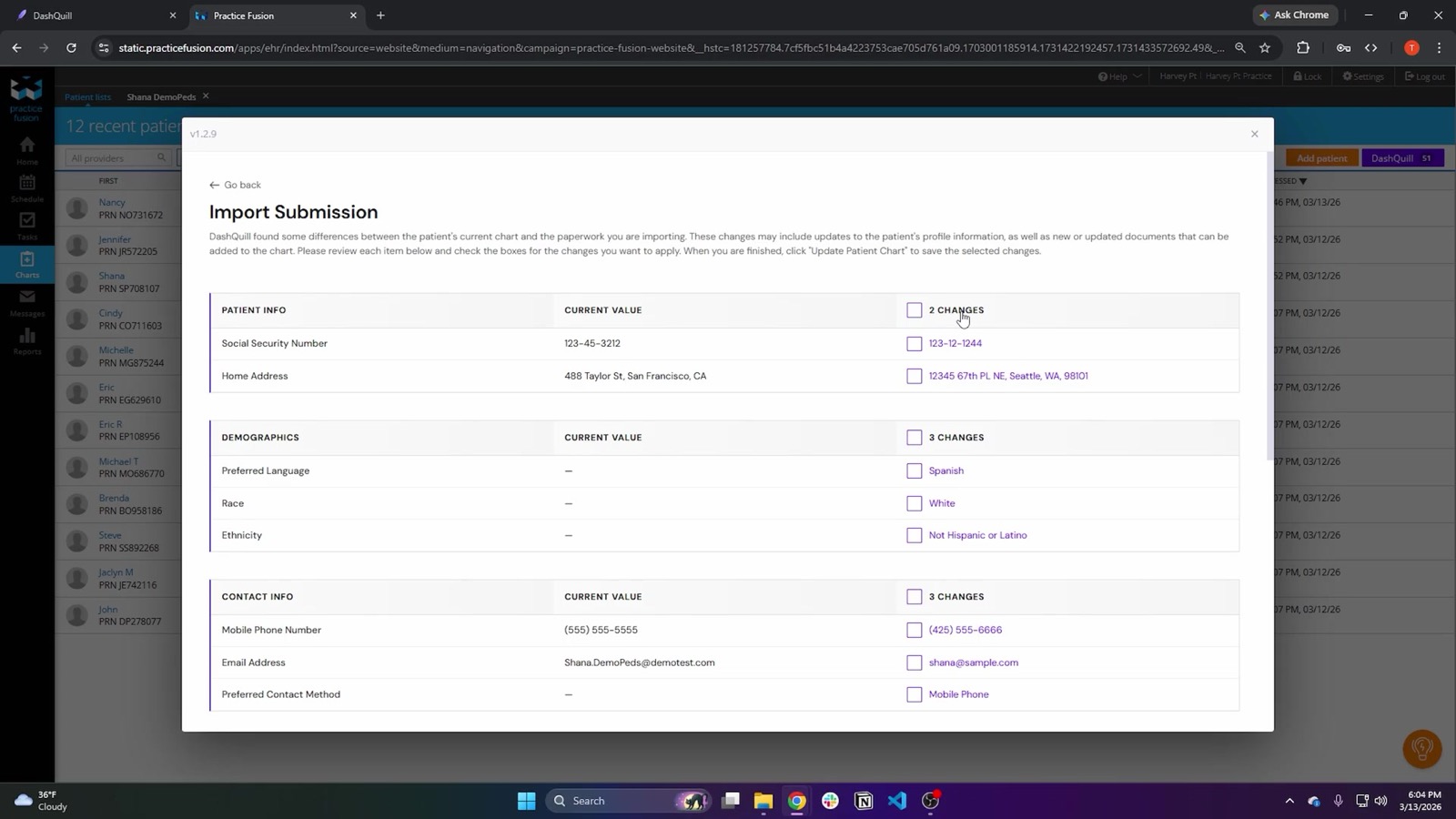
- Written to the chart: patient profile, contacts and emergency contacts, insurance with payer and plan from Practice Fusion’s list, preferred pharmacy and documents. It can create the chart when there is none.
- History: added to Practice Fusion’s free-text history sections (social history, ongoing problems, major events and the like), never overwritten.
- Review: the screen shows only the fields that differ from the chart, each with its own checkbox.
- Onboarding: PDF forms are converted by an automated pass and checked by our team. Paper and Word forms are rebuilt. Most practices are live within a few days.
- Privacy: forms open blank by default and carry no PHI. Prefilling from the chart is optional.
It is built for small and mid-size practices on Practice Fusion, including multi-location groups, and our team sets it up with you.
To see how we answer the nine questions in a live Practice Fusion chart, book a 15-minute demo and we will use a test patient. The full list of fields we write is on the Practice Fusion patient forms page.