




 AthenaHealth
 eClinicalWorks
 AdvancedMD
Patient Forms that integrate with  Practice Fusion
Patients complete intake on their phone. Your front desk reviews what is about to change and clicks Import. The answers land in the Practice Fusion chart, and the form can even create the chart for a brand-new patient. Nobody retypes anything.
How it works
The last step is the one that matters. Collecting the form is easy; getting it into Practice Fusion without a person retyping it is the hard part.
Send from the chart
Text or email it from the chart, put a link in the appointment reminder, embed it on your website, or hand over a tablet at the desk.
The patient fills it out
It opens in a phone browser with no app, account, or password. Signatures are captured right on the screen.
Import to Practice Fusion
Staff see the current chart value next to the proposed one and approve the whole submission or only the fields they want.
What practices say

DashQuill has streamlined our front-desk intake with an intuitive, all-in-one platform that keeps our team from bouncing between cumbersome technology stacks. Their team is consistently responsive and supportive and the dedicated domains make external sharing of forms simple and professional.

DashQuill came through for us when we desperately needed help. Across our 70+ providers, their AI system sorts up to 120,000 faxes a month, turning what used to be a huge burden on our staff into something fast and reliable.

Partnering with DashQuill has been a game-changer for our practice. Their seamless integration into our EHR system brought immediate improvements in workflow efficiency, reducing administrative burden and allowing our team to focus more on patient care.

I've been using DashQuill's HIPAA-compliant forms with my EHR, Practice Fusion, and I'm very happy with them. The forms are easy for patients to complete and seamlessly integrate into my workflow.

Before DashQuill, we had to manually create a contact for every patient in our secure texting system. Now that contacts sync automatically from our EHR, we can reach out instantly without any setup. It's made patient communication far more convenient.

DashQuill cut our paperwork to near zero. Patient forms now flow directly into our EHR system, saving our team hours each week and streamlining check-ins. Implementation was painless, and within days our forms were auto-uploading.

DashQuill was recommended to us, and within two weeks we completed online training and went live. Tim and John provided excellent support throughout the process, and we appreciate that our calls are answered promptly whenever assistance is needed.
The tagging system in DashQuill Faxing has made it so much easier to stay organized. We can quickly sort and find faxes by type or patient, and it's been a huge help for our office. Really glad this feature is built in.

When our office got very busy during COVID in 2020, DashQuill's patient forms were a lifesaver. They made it easy to speed up our entire intake process, which saved our staff countless hours and helped us keep up with the surge in patients. We still use the same setup today.

The EHR integration for messaging has been great. It's so convenient having all our patient texts connected directly to their charts. We had a few hiccups when hosting our phone number, but the DashQuill team was incredibly helpful and got everything sorted quickly.
With DashQuill's faxing, we turned a paper-heavy process into a fast, digital workflow. Now we have less printing, fewer errors, and more time to spend with patients.
Runs inside Practice Fusion, not beside it
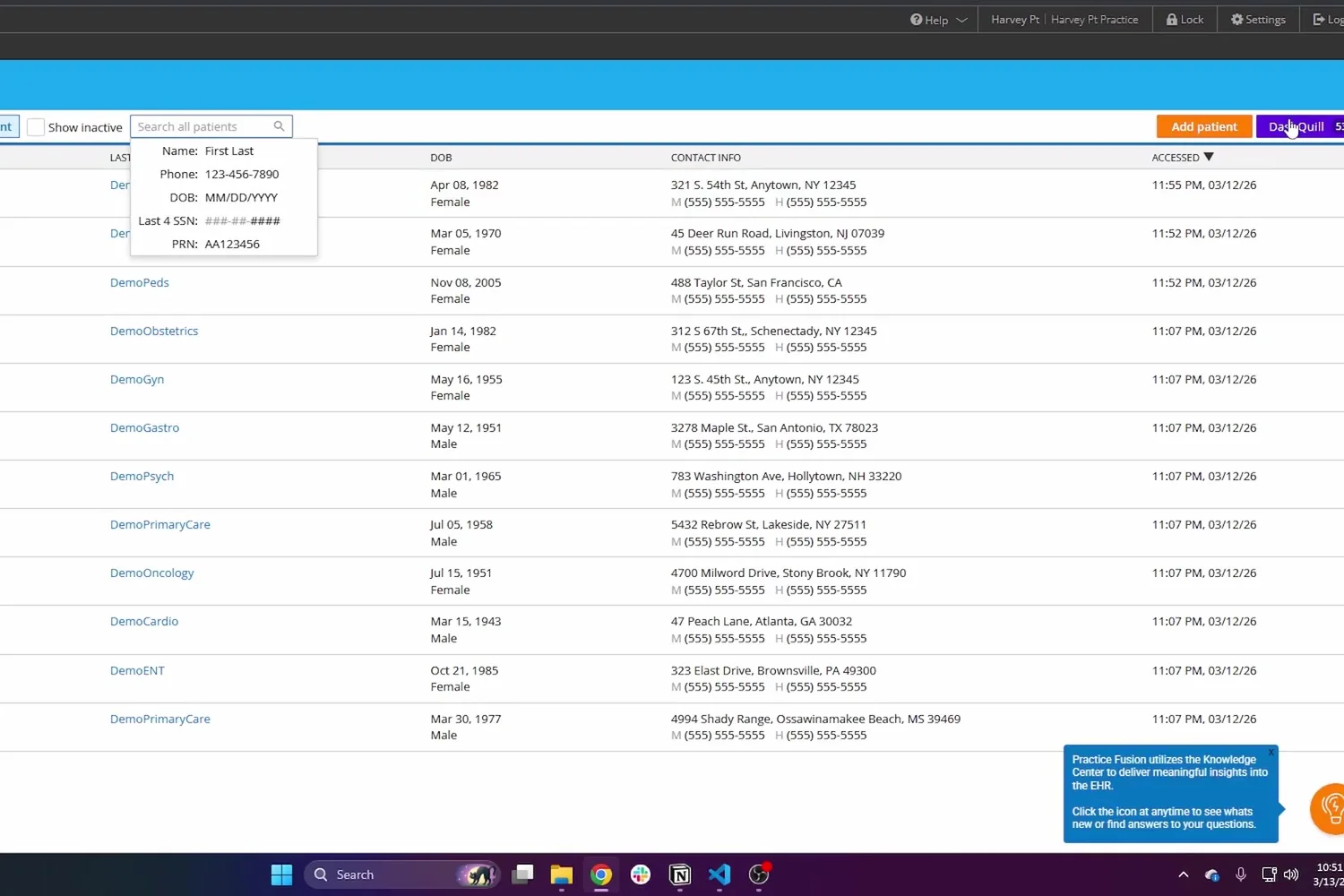
A Chrome extension adds a DashQuill button to the Practice Fusion patient charts list and the appointments tab. Click it and the service opens over the page you already have open.
- One button, one menu: Forms, Faxes, Chats and Meet
- Opens as a window you can resize, move and minimise while you chart
- Same Practice Fusion login, no second tab or password
- Installed in minutes with a page reload; we walk you through it on a call
New patients do not need a chart first
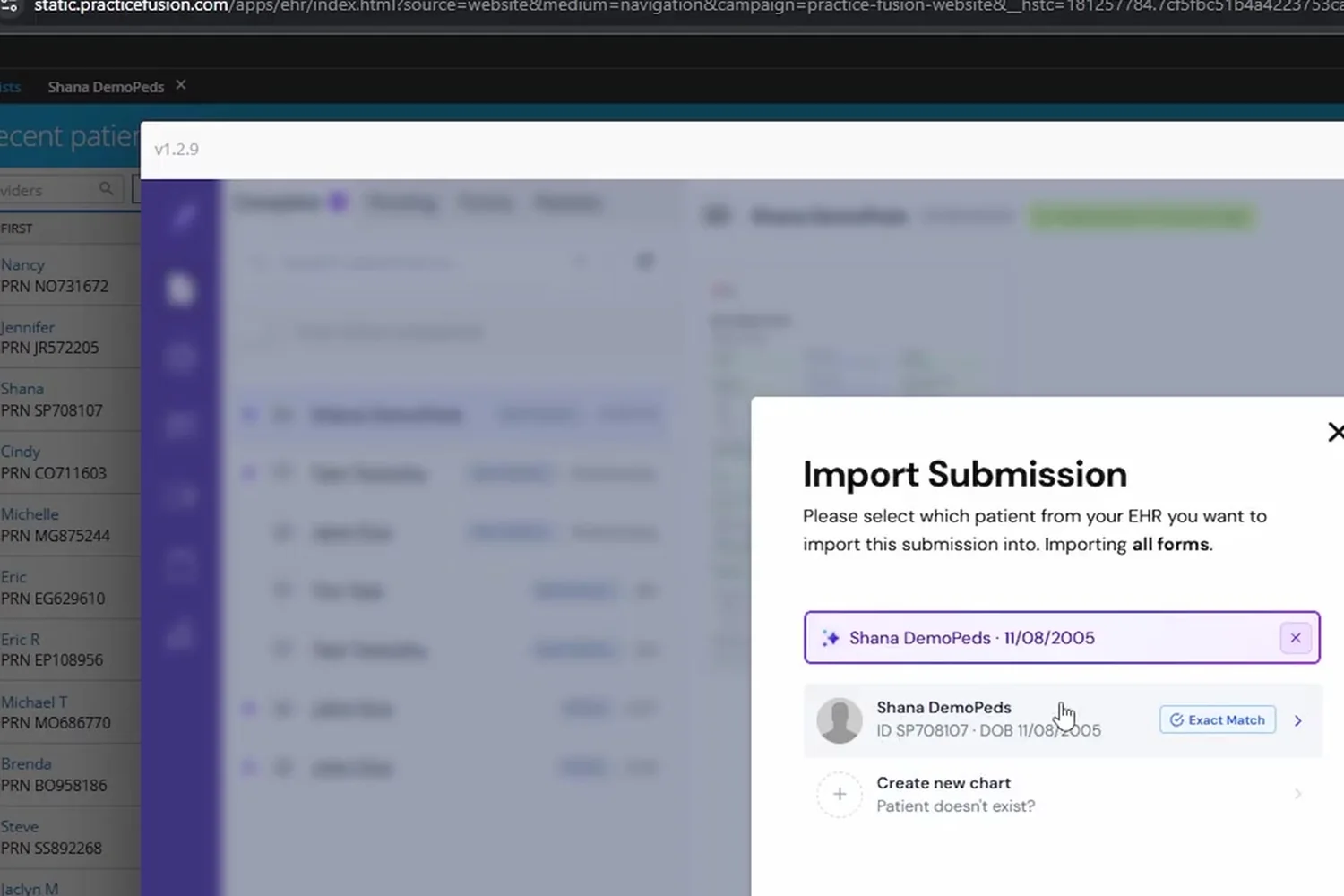
On Practice Fusion, DashQuill can create the patient record from the submission itself. A prospective patient can register on your website on Sunday and exist as a chart on Monday morning without anyone opening a new-patient screen.
- Create a new Practice Fusion patient directly from a submission
- Or match the submission to an existing patient and update that chart
- Website and QR-code forms work for people who have never called the office
- Duplicate-looking submissions surface for a human to decide on
You approve every change before it lands
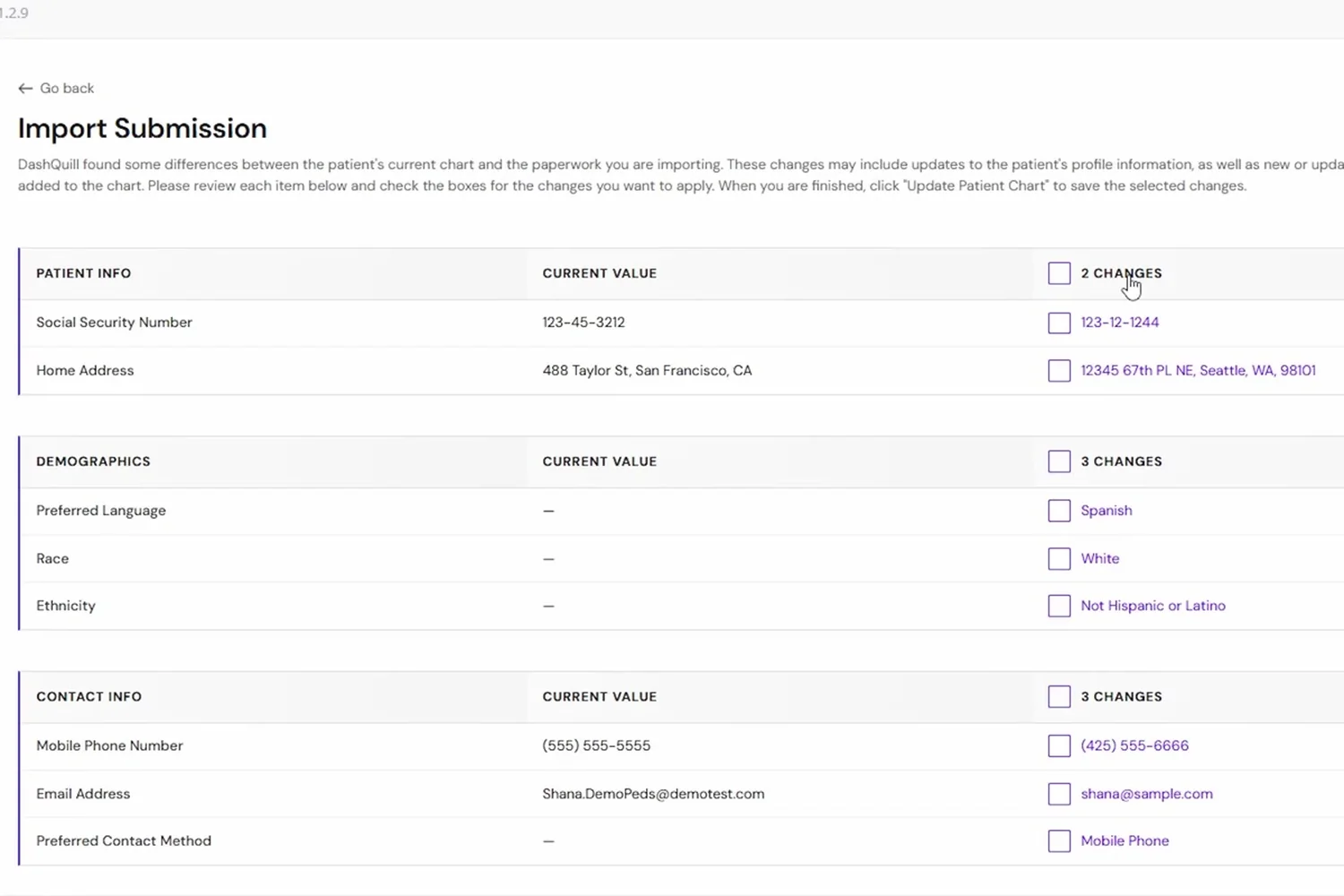
This is the difference between an integration and an import button that you have to trust blindly. DashQuill shows you the proposed chart change first. A patient who mistypes a date of birth does not silently overwrite a correct one.
- Field-by-field comparison of the current chart against the submission
- Accept the full submission or pick individual fields
- Demographics, contact details, emergency contacts, insurance, preferred pharmacy and past medical history
- Nothing is written to Practice Fusion until someone clicks Import
Attachments go to the chart, not to a desktop
Insurance cards, photo ID, and any documents the patient uploads attach to the Practice Fusion chart on import. Nobody downloads PHI to a workstation, uploads it again, and then has to remember to delete it.
- The completed, signed form is filed to the chart as a document
- Insurance card and driver's license photos upload with it
- Any supporting file the patient attached comes along
- No PHI is left sitting in a downloads folder
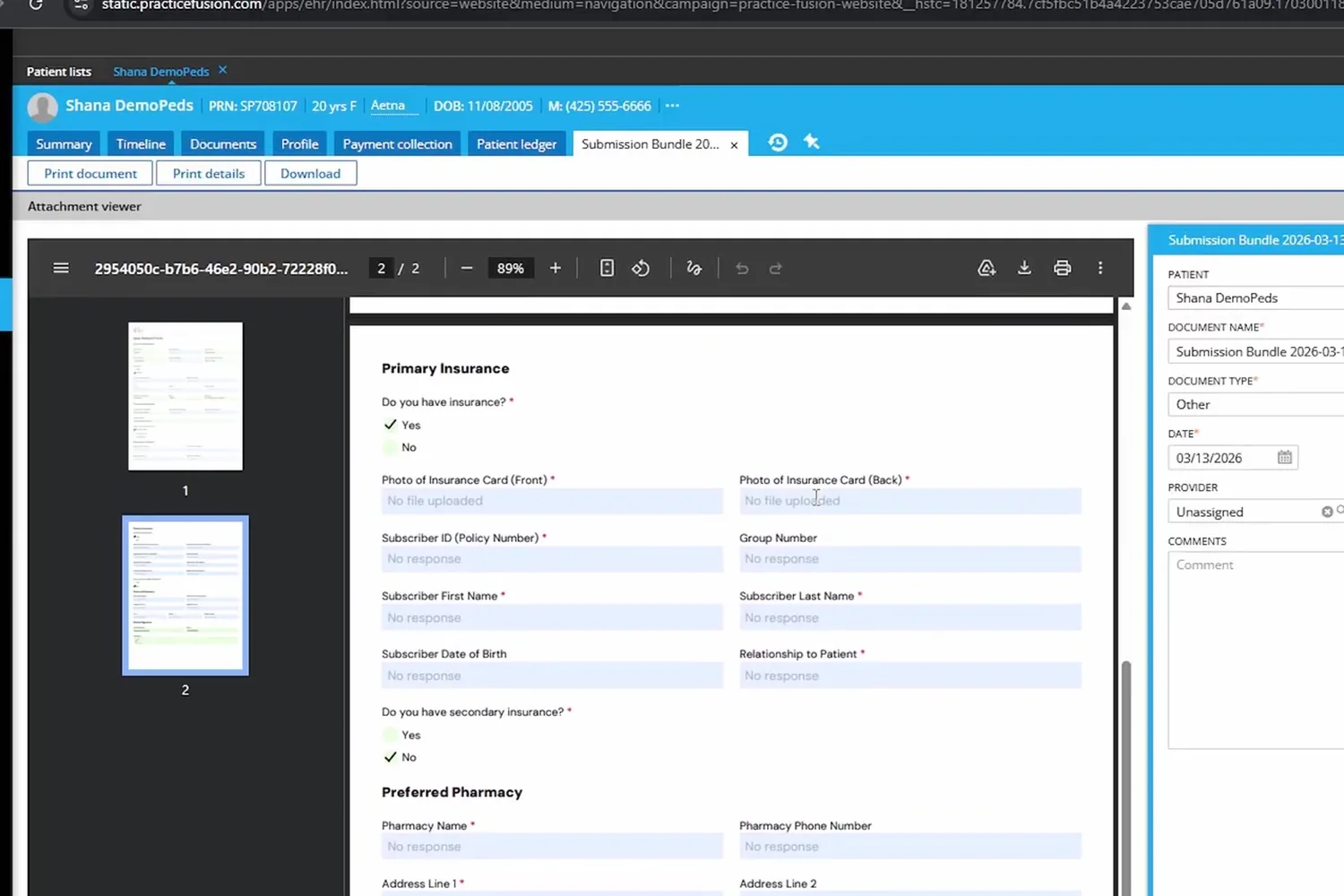
Patient forms in Practice Fusion
What a submission can do to a Practice Fusion chart today, and what is still being built.
| Number | Capability | Status |
|---|---|---|
| Create a new patient in Practice Fusion from a submission | Included | |
| Update an existing Practice Fusion patient from a submission | Included | |
| Review proposed chart changes before they reach Practice Fusion | Included | |
| One-click import of submission data into the Practice Fusion chart | Included | |
| Auto-fill demographics in Practice Fusion | Included | |
| Auto-fill contact information in Practice Fusion | Included | |
| Add emergency contacts to the Practice Fusion chart | Included | |
| Add insurance details to the Practice Fusion chart | Included | |
| Set the preferred pharmacy in Practice Fusion | Included | |
| Import past medical history into Practice Fusion | Included | |
| Upload the completed form to the Practice Fusion chart | Included | |
| Upload insurance cards to the Practice Fusion chart | Included | |
| Upload ID and driver's license photos to the Practice Fusion chart | Included | |
| Attach supporting documents to the Practice Fusion chart | Included | |
| Update medication lists in Practice Fusion | Coming soon | |
| Update allergies in Practice Fusion | Coming soon |
Questions we get asked first
The things Practice Fusion practices want settled before a demo.
How is this different from a form tool that just emails us a PDF?
A PDF still has to be read by a person and typed into Practice Fusion. DashQuill maps each answer to the matching chart field, so the work left at the front desk is checking a comparison screen and clicking Import. The form itself also files to the chart as a document, so you keep the signed copy.
Can a patient who has never been seen here fill out a form?
Yes, and on Practice Fusion the submission can create the chart. That is what makes website and QR-code registration useful. Someone can find you, register, and have a chart waiting before anyone at the office touches it.
Does past medical history come across?
Yes. The past medical history a patient enters on the form imports into the Practice Fusion chart along with the rest of the submission. Staff review it on the same comparison screen before anything is saved.
What stops a patient's typo from overwriting good data?
Nothing is written until a staff member imports it. You get a field-by-field view of the current chart value against the submitted one and can accept the whole thing or only the fields you trust. A mistyped date of birth shows up as a difference rather than silently replacing the correct value.
How do patients get the form?
Forms can be texted or emailed from the patient's chart, included in an appointment reminder, embedded on your website, opened from a QR code, or filled in on a tablet at the front desk. However the form is completed, it arrives in the same queue.
What happens to insurance cards and photo ID?
They upload to the Practice Fusion chart when the form is imported. The point is that no one downloads an image to a workstation, re-uploads it, and then has to clean up the copy left behind.
How long does setup take?
Most practices are running within a few days. Your existing forms are converted to digital versions, and the fields are mapped to Practice Fusion during onboarding. The variable is how many forms you bring over and how much reviewing you want to do before going live.
Is it HIPAA compliant?
Yes. PHI is encrypted in transit and at rest, access is restricted and logged, and we sign a Business Associate Agreement as part of standard onboarding. There is more detail on our HIPAA compliance page.

More on DashQuill and Practice Fusion
See it in 15 minutes. No commitment.
A quick, no-pressure demo of DashQuill patient forms for Practice Fusion. Ask anything, see how it fits your workflow, and walk away with a personalized quote.