




 Practice Fusion
 AthenaHealth
 eClinicalWorks
 AdvancedMD
Practice Fusion has no fax inbox, so every fax is carried in by hand
Practice Fusion does not have a built-in fax inbox. Faxes arrive somewhere else, and every office knows the path into the chart: get the fax as a file, find the patient, open Documents, upload, name it, pick a type, and remember to delete the file afterward. Repeat that for every referral, result and refill request and it becomes somebody’s whole afternoon.
This guide follows that path from one end to the other. It starts with where faxes arrive, finds the step that causes the trouble, shows what changes when the inbox lives inside Practice Fusion, and then walks one referral from arrival to chart. The screenshots are from our own tool, and we say so where they appear.
One thing to be clear about up front: Practice Fusion’s own document upload is the only native way a fax gets into a chart. Everything else described here is a layer on top of it.
Faxes reach the office in one of three ways
The path into the chart depends on where the fax lands first. For a Practice Fusion office there are three possibilities.
- A fax machine or multifunction printer. Pages print. Someone sorts the tray, scans what belongs in a chart, and uploads the scan. That is two trips through paper for a document that was digital at the sender’s end.
- An eFax service. The fax arrives as a PDF in a portal or email. There is no paper, but the PDF has to be downloaded before Practice Fusion can take it.
- An inbox embedded in Practice Fusion. A third-party tool adds a fax inbox to the Practice Fusion screen and writes to the chart directly. This is the category we make.
| Fax machine | eFax service | Embedded inbox | |
|---|---|---|---|
| Fax arrives as | Paper | A PDF in a portal or email | An item in a list inside Practice Fusion |
| Steps to the chart | Scan, save, open chart, upload, name, type | Download, open chart, upload, name, type, delete | Confirm patient, confirm name and type, upload |
| Copy left on a computer | The scan | The download | None |
| Find a fax by patient | No | Only if someone renamed it | Yes, if the patient was recorded |
| Sign and return | Print, sign, scan, fax | Download, sign in a PDF tool, upload, fax | Sign in the inbox, fax back |
| Send from the chart | Print, walk, dial | Export, upload, dial | Pick the document, send |
Whichever way they arrive, the download step is the problem
Look at the first two columns and the trouble is in the same place: the middle, where the fax sits on a computer as a file between two systems. That step costs you twice.
- Time. Download, open, upload is six or seven clicks and a file dialog per fax, and nobody gets faster at it.
- Risk. Every download leaves a patient’s record in a Downloads folder on a shared front desk PC. Deleting it is a habit, and habits slip. If your compliance officer has ever asked “where do faxes go after they come in,” this step is the honest answer.
The fix is to put the inbox and the chart in the same place, so the document moves between them without ever becoming a file. Some EHRs have a fax module that does this natively. Practice Fusion does not, so here it means a tool that embeds an inbox and writes to Documents through the chart.
Put the inbox inside Practice Fusion and three things change
Removing the download does more than save clicks. It changes how filing, searching and signing work.
Filing becomes a confirmation. The inbox reads the name and date of birth off the fax and runs the patient search for you, ranking the closest charts and flagging an exact match. The document name is prefilled. The person picks the chart, the document type and the provider, and clicks. If the search found the wrong people, they change the query.
The inbox becomes searchable by patient. A fax machine sorts by arrival time, and an eFax portal by sender number. Once each fax has a patient recorded against it, “did the cardiology report come in for Mr. Nguyen” is a search, not a scroll.
Signing stays in the inbox. A large share of incoming faxes are not for filing at all. Home health orders, DME forms and insurer pages need a signature and a return trip. The provider opens the fax, places a signature and date, selects the pages to return, and sends them back to the number they came from. No printer, no PDF editor.
Watch it happen: one referral from arrival to chart
Here is what that looks like for a single fax. This is a synthetic referral for a synthetic patient, using DashQuill inside Practice Fusion.
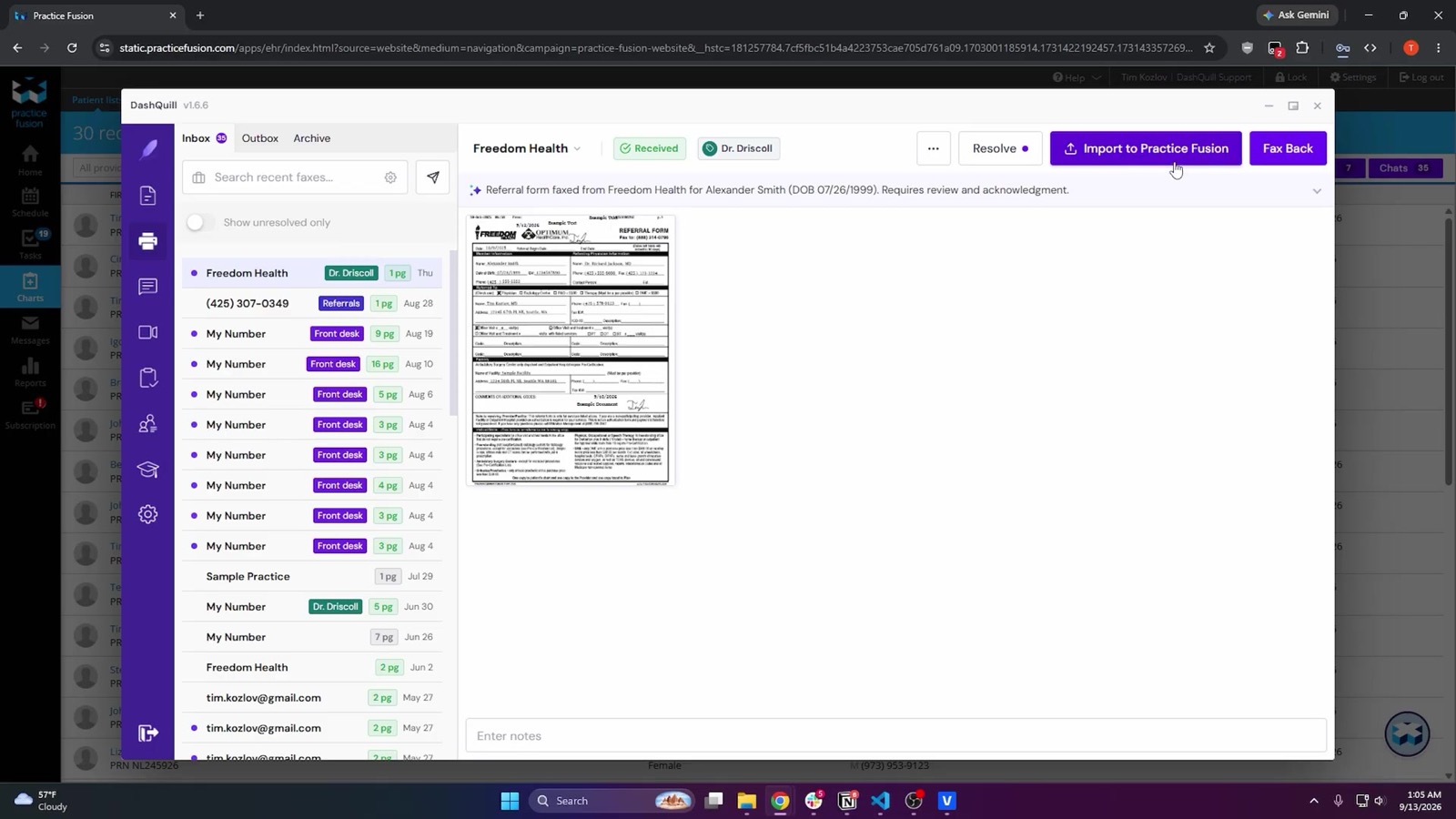
9:40, the fax arrives. An orthopedic practice refers Priya Raman to Dr. Hale for a post-surgical follow-up. Three pages: a cover sheet, a typed letter, and a handwritten note from the surgeon about weight-bearing restrictions.
It is read and tagged. The inbox shows a one-line summary and the fields read off the pages: Priya’s name and date of birth, Dr. Hale, the sending practice and its fax number, and the note from the cover sheet. The office’s routing rules tag it Referrals, so it appears in the referral coordinator’s view rather than in everyone’s.
10:15, the coordinator clicks Import to Practice Fusion. The inbox searches with the name and date of birth it read and finds nothing. Priya is new to the practice, which is what a referral usually means.
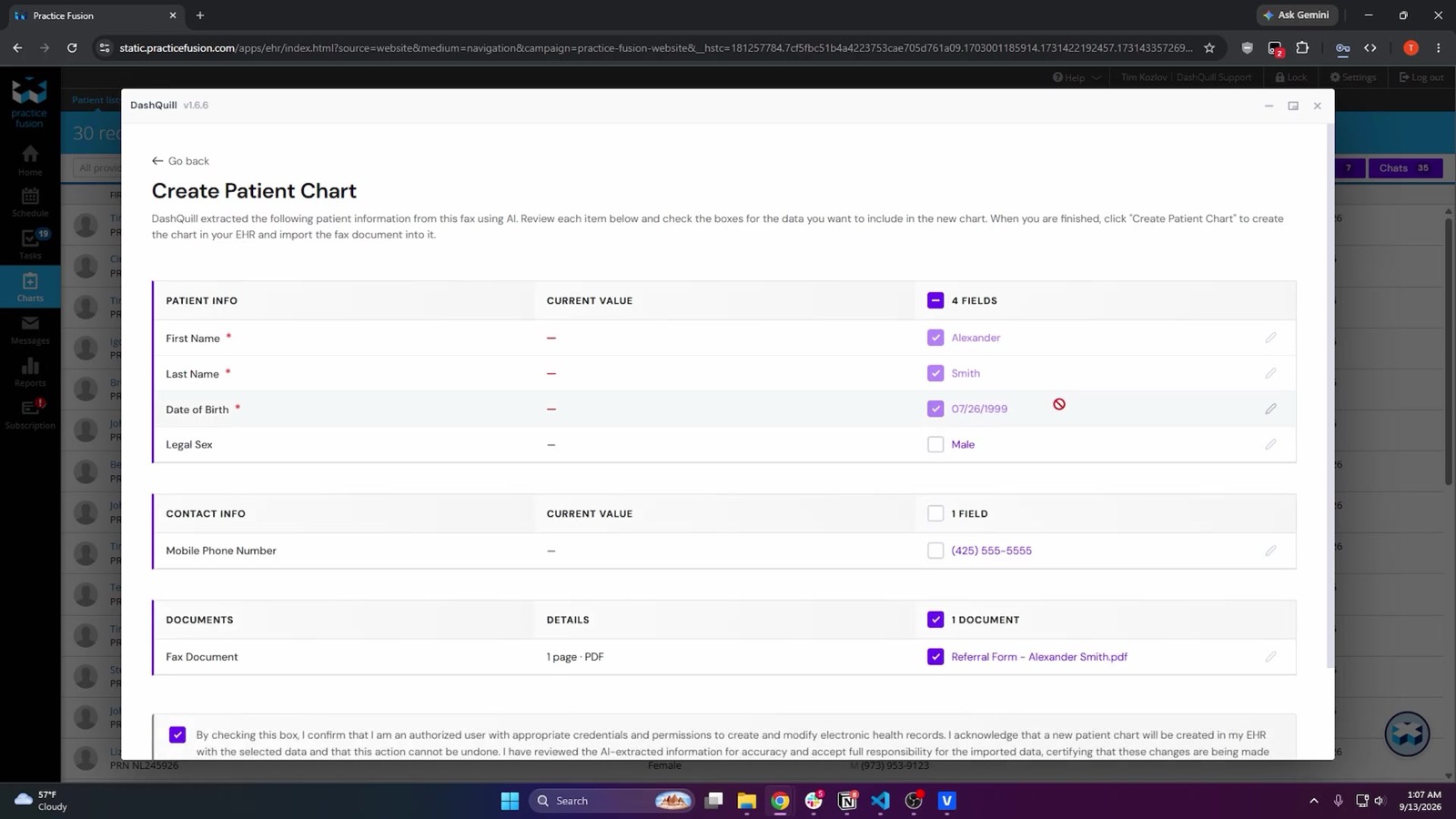
She creates the chart from the fax. Instead of closing the fax and building a chart by hand, she clicks Create patient chart. The name, date of birth, phone and address appear with checkboxes. She ticks the fields she trusts, leaves the phone unticked because the handwriting was rough, confirms she checked them against the fax, and creates the chart.
She files the referral. The document name is prefilled. She picks Referral as the type and Dr. Hale as the provider from Practice Fusion’s own lists, and uploads. Then she adds a note for the scheduler, “new patient, needs post-op visit within two weeks per ortho,” and marks the fax resolved.
Priya now has a chart, a filed referral and a scheduling note, and nobody typed her name into Practice Fusion. The phone number the coordinator did not trust gets confirmed when the scheduler calls.
The same idea works in reverse for outbound faxes
Sending has the same three tiers as receiving, and the same step in the middle to remove.
| From | Steps |
|---|---|
| A fax machine | Print the record, walk it over, dial |
| An eFax portal | Export from Practice Fusion, upload to the portal, dial |
| An embedded inbox | Pick the document from the chart and send |
With an embedded inbox, the Print chart dialog can get a fax option and the document viewer gets a Fax button, so a chart note or lab result can be faxed from where you are looking at it. The specialists, labs and pharmacies you fax every week live in a contact list, so nobody hunts for a number.
What stays the same after the switch
An embedded inbox changes how faxes move. It leaves the things your office relies on where they are.
- Your documents are still Practice Fusion documents. Document types come from Practice Fusion’s own list. Once uploaded, a fax is an ordinary document you rename or move as usual.
- A person still confirms every match. The inbox proposes the chart, and nothing is uploaded until someone picks the patient and clicks.
- Nothing gets lost in sorting. A fax the routing rules cannot place stays visible in its own view, or in a catch-all tag, for a person to work.
- Your number can stay. We port the existing number or provide a new one, and the number is not billed separately. We will tell you the porting timeline before you commit.
If you decide to switch, settle five things first
The move goes smoothly when these are decided before the first fax arrives in the new inbox, whichever tool you choose:
- The number. Keep it or start fresh, and who tells your top twenty senders if it changes.
- Your tags. Category tags, one per provider, or both. The high-volume fax guide has a triage table to start from.
- The exception owner. Who works untagged and exception faxes, and when.
- The install. Whatever the tool needs on every computer that uses Practice Fusion. For us that is a Chrome or Edge extension.
- A parallel week. Run with the old fax path still open, and compare.
The full list of what our faxing does on Practice Fusion is on the Practice Fusion cloud faxing page. To see the referral example on a live screen, book a 15-minute demo.